> ## Documentation Index
> Fetch the complete documentation index at: https://docs.chunkr.ai/llms.txt
> Use this file to discover all available pages before exploring further.
# Advanced Cases
> Configuring the Parse feature for advanced use cases
This guide covers advanced configurations for the Parse feature to handle a variety of specialized use cases and requirements.
## Extended Context: Handling Distant Legends
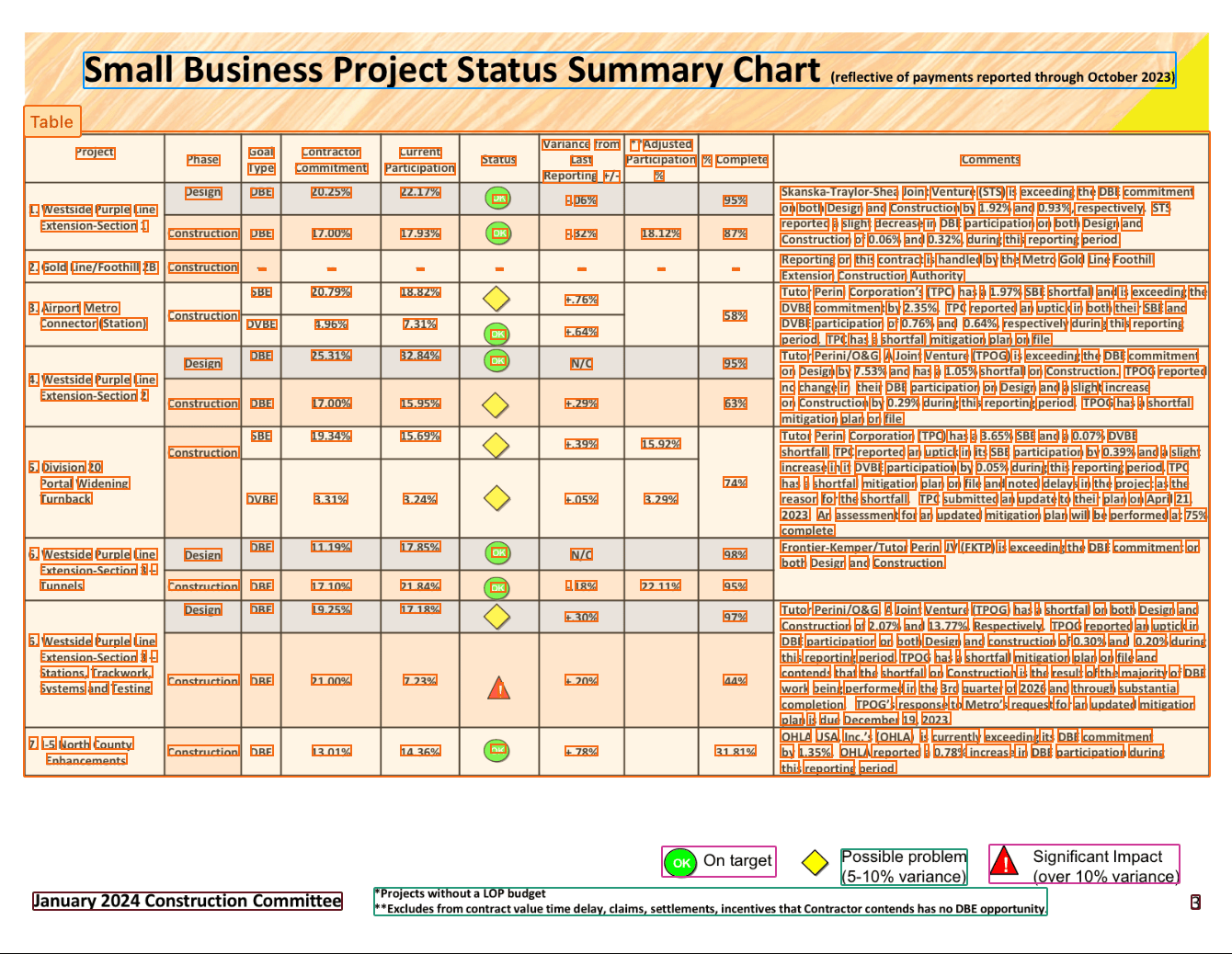 Elements like tables or charts might rely on context from other parts of the page. For example, a chart's legend could be located in a different corner of the document that isn't picked up when the cropped chart is sent to a VLM.
For these scenarios, the best practice is to enable `extended_context`. This provides the VLM with the full page image with the cropped segment as context.
Elements like tables or charts might rely on context from other parts of the page. For example, a chart's legend could be located in a different corner of the document that isn't picked up when the cropped chart is sent to a VLM.
For these scenarios, the best practice is to enable `extended_context`. This provides the VLM with the full page image with the cropped segment as context.
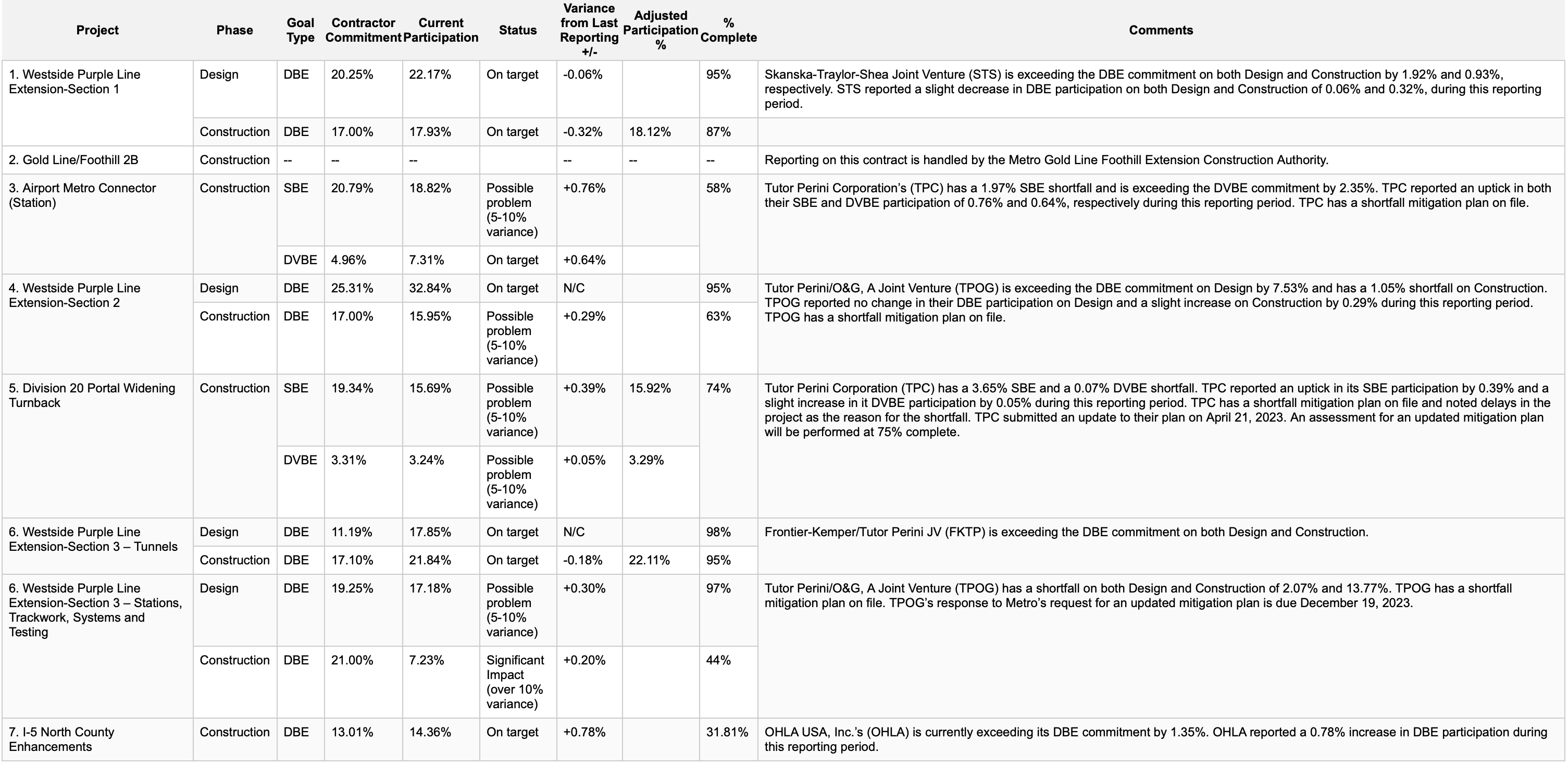 Here’s how to enable it for `Table` and `Picture` segments:
```python Python theme={"system"}
import os
from chunkr_ai import Chunkr
client = Chunkr(api_key=os.environ["CHUNKR_API_KEY"])
# Parse with extended context for tables and pictures
task = client.tasks.parse.create(
file="https://s3.us-east-1.amazonaws.com/chunkr-web/uploads/construction.pdf",
segment_processing={
"table": {"extended_context": True},
"picture": {"extended_context": True},
},
)
```
```typescript TypeScript theme={"system"}
import Chunkr from "chunkr-ai";
const client = new Chunkr({ apiKey: process.env.CHUNKR_API_KEY! });
// Parse with extended context for tables and pictures
const task = await client.tasks.parse.create({
file: "https://s3.us-east-1.amazonaws.com/chunkr-web/uploads/construction.pdf",
segment_processing: {
Table: {
extended_context: true,
},
Picture: {
extended_context: true,
},
},
});
```
***
## Full-Page VLM: Bypassing Layout Analysis
For documents where layout analysis struggles, or for simple documents where it's unnecessary, you can bypass layout analysis entirely.
By setting the `segmentation_strategy` to `Page`, you can instruct Chunkr to process the entire page with a Vision Language Model (VLM) and generate Markdown directly.
This approach is highly effective for:
* **Layout analysis failure**: In the rare case that layout analysis struggles with a document's structure.
* **Simple Documents**: Tiny, text-only, and uniform documents (e.g., receipts) where layout analysis offers no benefit and simple OCR is sufficient for bounding boxes.
Here’s how to enable it:
```python Python theme={"system"}
import os
from chunkr_ai import Chunkr
client = Chunkr(api_key=os.environ["CHUNKR_API_KEY"])
# Force full-page VLM processing for Markdown output
task = client.tasks.parse.create(
file="https://s3.us-east-1.amazonaws.com/chunkr-web/uploads/receipt.pdf",
segmentation_strategy="Page",
)
```
```typescript TypeScript theme={"system"}
import Chunkr from "chunkr-ai";
const client = new Chunkr({ apiKey: process.env.CHUNKR_API_KEY! });
// Force full-page VLM processing for Markdown output
const task = await client.tasks.parse.create({
file: "https://s3.us-east-1.amazonaws.com/chunkr-web/uploads/receipt.pdf",
segmentation_strategy: "Page",
});
```
***
## Disabling Chunking for Non-RAG Workflows
If you're using Chunkr for data extraction, document analysis, or other non-RAG workflows, you may want to disable chunking entirely.
When chunking is disabled, each chunk in the output will contain exactly one segment.
To disable chunking, set `target_length` to `0` in the `chunk_processing` configuration:
```python Python theme={"system"}
import os
from chunkr_ai import Chunkr
client = Chunkr(api_key=os.environ["CHUNKR_API_KEY"])
# Disable chunking for extraction workflows
task = client.tasks.parse.create(
file="https://s3.us-east-1.amazonaws.com/chunkr-web/uploads/receipt.pdf",
chunk_processing={
"target_length": 0 # Disables chunking
},
)
```
```typescript TypeScript theme={"system"}
import Chunkr from "chunkr-ai";
const client = new Chunkr({ apiKey: process.env.CHUNKR_API_KEY! });
// Disable chunking for extraction workflows
const task = await client.tasks.parse.create({
file: "https://s3.us-east-1.amazonaws.com/chunkr-web/uploads/receipt.pdf",
chunk_processing: {
target_length: 0, // Disables chunking
},
});
```
***
## Optimizing for speed
The most significant factor affecting processing time is VLM processing. By default, Chunkr uses VLM processing for the following segment types to ensure high-quality data extraction:
* **Tables**
* **Images**
* **Forms**
* **Legends**
* **Formulas**
If high-quality data extraction is not critical for certain segment types in your use case, you can disable VLM processing for those segments to significantly improve processing speed.
For example, if your document contains images that are decorative or not essential to extract, you can disable VLM processing for images:
```python Python theme={"system"}
import os
from chunkr_ai import Chunkr
client = Chunkr(api_key=os.environ["CHUNKR_API_KEY"])
# Disable VLM processing for images to optimize for speed
task = client.tasks.parse.create(
file="https://s3.us-east-1.amazonaws.com/chunkr-web/uploads/doc.pdf",
segment_processing={
"picture": {"strategy": "Auto"},
},
)
```
```typescript TypeScript theme={"system"}
import Chunkr from "chunkr-ai";
const client = new Chunkr({ apiKey: process.env.CHUNKR_API_KEY! });
// Disable VLM processing for images to optimize for speed
const task = await client.tasks.parse.create({
file: "https://s3.us-east-1.amazonaws.com/chunkr-web/uploads/doc.pdf",
segment_processing: {
Picture: {
strategy: "Auto",
},
},
});
```
You can disable VLM processing for multiple segment types by adding them to the `segment_processing` configuration. This allows you to balance speed and quality based on your specific requirements.
***
## Extracting Text Styling
By default, text segments are processed with OCR which captures the content but loses formatting information. If you need to preserve text styling such as bold, italicization, font colors, and other formatting details, you can enable VLM processing for text segments.
This is useful for use cases like:
* **Redlining**: Tracking changes and formatting in legal documents
* **Document comparison**: Identifying styling differences between versions
* **Accessibility**: Preserving semantic meaning conveyed through formatting
Enabling VLM processing for text segments significantly increases processing time, as text segments are the most common segment type in documents.
Here's how to enable text styling extraction:
```python Python theme={"system"}
import os
from chunkr_ai import Chunkr
client = Chunkr(api_key=os.environ["CHUNKR_API_KEY"])
# Enable VLM processing for text to capture styling
task = client.tasks.parse.create(
file="https://s3.us-east-1.amazonaws.com/chunkr-web/uploads/doc.pdf",
segment_processing={
"text": {"strategy": "LLM"},
},
)
```
```typescript TypeScript theme={"system"}
import Chunkr from "chunkr-ai";
const client = new Chunkr({ apiKey: process.env.CHUNKR_API_KEY! });
// Enable VLM processing for text to capture styling
const task = await client.tasks.parse.create({
file: "https://s3.us-east-1.amazonaws.com/chunkr-web/uploads/doc.pdf",
segment_processing: {
Text: {
strategy: "LLM",
},
},
});
```
***
## Ignoring Segment Types
When you only need specific types of content from your documents, you can ignore certain segment types entirely. This is useful for:
* Focusing on specific content types (e.g., only tables and charts)
* Removing unwanted elements (e.g., headers, footers, page numbers)
* Simplifying output for targeted extraction workflows
For example, if you only want to extract tables and ignore all other content:
```python Python theme={"system"}
import os
from chunkr_ai import Chunkr
client = Chunkr(api_key=os.environ["CHUNKR_API_KEY"])
# Extract only tables, ignore everything else
task = client.tasks.parse.create(
file="https://s3.us-east-1.amazonaws.com/chunkr-web/uploads/doc.pdf",
segment_processing={
"caption": {"strategy": "Ignore"},
"footnote": {"strategy": "Ignore"},
"form_region": {"strategy": "Ignore"},
"formula": {"strategy": "Ignore"},
"graphical_item": {"strategy": "Ignore"},
"legend": {"strategy": "Ignore"},
"line_number": {"strategy": "Ignore"},
"list_item": {"strategy": "Ignore"},
"page": {"strategy": "Ignore"},
"page_footer": {"strategy": "Ignore"},
"page_header": {"strategy": "Ignore"},
"page_number": {"strategy": "Ignore"},
"picture": {"strategy": "Ignore"},
"text": {"strategy": "Ignore"},
"title": {"strategy": "Ignore"},
},
)
```
```typescript TypeScript theme={"system"}
import Chunkr from "chunkr-ai";
const client = new Chunkr({ apiKey: process.env.CHUNKR_API_KEY! });
// Extract only tables, ignore everything else
const task = await client.tasks.parse.create({
file: "https://s3.us-east-1.amazonaws.com/chunkr-web/uploads/doc.pdf",
segment_processing: {
Caption: { strategy: "Ignore" },
Footnote: { strategy: "Ignore" },
FormRegion: { strategy: "Ignore" },
Formula: { strategy: "Ignore" },
GraphicalItem: { strategy: "Ignore" },
Legend: { strategy: "Ignore" },
LineNumber: { strategy: "Ignore" },
ListItem: { strategy: "Ignore" },
Page: { strategy: "Ignore" },
PageFooter: { strategy: "Ignore" },
PageHeader: { strategy: "Ignore" },
PageNumber: { strategy: "Ignore" },
Picture: { strategy: "Ignore" },
Text: { strategy: "Ignore" },
Title: { strategy: "Ignore" },
},
});
```
Alternatively, you can selectively ignore just a few segment types while keeping the rest. The following example is for rmeoving headers and footers for RAG chunks:
```python Python theme={"system"}
import os
from chunkr_ai import Chunkr
client = Chunkr(api_key=os.environ["CHUNKR_API_KEY"])
# Ignore headers and footers
task = client.tasks.parse.create(
file="https://s3.us-east-1.amazonaws.com/chunkr-web/uploads/doc.pdf",
segment_processing={
"page_header": {"strategy": "Ignore"},
"page_footer": {"strategy": "Ignore"},
},
)
```
```typescript TypeScript theme={"system"}
import Chunkr from "chunkr-ai";
const client = new Chunkr({ apiKey: process.env.CHUNKR_API_KEY! });
// Ignore headers and footers
const task = await client.tasks.parse.create({
file: "https://s3.us-east-1.amazonaws.com/chunkr-web/uploads/doc.pdf",
segment_processing: {
PageHeader: { strategy: "Ignore" },
PageFooter: { strategy: "Ignore" },
},
});
```
Here’s how to enable it for `Table` and `Picture` segments:
```python Python theme={"system"}
import os
from chunkr_ai import Chunkr
client = Chunkr(api_key=os.environ["CHUNKR_API_KEY"])
# Parse with extended context for tables and pictures
task = client.tasks.parse.create(
file="https://s3.us-east-1.amazonaws.com/chunkr-web/uploads/construction.pdf",
segment_processing={
"table": {"extended_context": True},
"picture": {"extended_context": True},
},
)
```
```typescript TypeScript theme={"system"}
import Chunkr from "chunkr-ai";
const client = new Chunkr({ apiKey: process.env.CHUNKR_API_KEY! });
// Parse with extended context for tables and pictures
const task = await client.tasks.parse.create({
file: "https://s3.us-east-1.amazonaws.com/chunkr-web/uploads/construction.pdf",
segment_processing: {
Table: {
extended_context: true,
},
Picture: {
extended_context: true,
},
},
});
```
***
## Full-Page VLM: Bypassing Layout Analysis
For documents where layout analysis struggles, or for simple documents where it's unnecessary, you can bypass layout analysis entirely.
By setting the `segmentation_strategy` to `Page`, you can instruct Chunkr to process the entire page with a Vision Language Model (VLM) and generate Markdown directly.
This approach is highly effective for:
* **Layout analysis failure**: In the rare case that layout analysis struggles with a document's structure.
* **Simple Documents**: Tiny, text-only, and uniform documents (e.g., receipts) where layout analysis offers no benefit and simple OCR is sufficient for bounding boxes.
Here’s how to enable it:
```python Python theme={"system"}
import os
from chunkr_ai import Chunkr
client = Chunkr(api_key=os.environ["CHUNKR_API_KEY"])
# Force full-page VLM processing for Markdown output
task = client.tasks.parse.create(
file="https://s3.us-east-1.amazonaws.com/chunkr-web/uploads/receipt.pdf",
segmentation_strategy="Page",
)
```
```typescript TypeScript theme={"system"}
import Chunkr from "chunkr-ai";
const client = new Chunkr({ apiKey: process.env.CHUNKR_API_KEY! });
// Force full-page VLM processing for Markdown output
const task = await client.tasks.parse.create({
file: "https://s3.us-east-1.amazonaws.com/chunkr-web/uploads/receipt.pdf",
segmentation_strategy: "Page",
});
```
***
## Disabling Chunking for Non-RAG Workflows
If you're using Chunkr for data extraction, document analysis, or other non-RAG workflows, you may want to disable chunking entirely.
When chunking is disabled, each chunk in the output will contain exactly one segment.
To disable chunking, set `target_length` to `0` in the `chunk_processing` configuration:
```python Python theme={"system"}
import os
from chunkr_ai import Chunkr
client = Chunkr(api_key=os.environ["CHUNKR_API_KEY"])
# Disable chunking for extraction workflows
task = client.tasks.parse.create(
file="https://s3.us-east-1.amazonaws.com/chunkr-web/uploads/receipt.pdf",
chunk_processing={
"target_length": 0 # Disables chunking
},
)
```
```typescript TypeScript theme={"system"}
import Chunkr from "chunkr-ai";
const client = new Chunkr({ apiKey: process.env.CHUNKR_API_KEY! });
// Disable chunking for extraction workflows
const task = await client.tasks.parse.create({
file: "https://s3.us-east-1.amazonaws.com/chunkr-web/uploads/receipt.pdf",
chunk_processing: {
target_length: 0, // Disables chunking
},
});
```
***
## Optimizing for speed
The most significant factor affecting processing time is VLM processing. By default, Chunkr uses VLM processing for the following segment types to ensure high-quality data extraction:
* **Tables**
* **Images**
* **Forms**
* **Legends**
* **Formulas**
If high-quality data extraction is not critical for certain segment types in your use case, you can disable VLM processing for those segments to significantly improve processing speed.
For example, if your document contains images that are decorative or not essential to extract, you can disable VLM processing for images:
```python Python theme={"system"}
import os
from chunkr_ai import Chunkr
client = Chunkr(api_key=os.environ["CHUNKR_API_KEY"])
# Disable VLM processing for images to optimize for speed
task = client.tasks.parse.create(
file="https://s3.us-east-1.amazonaws.com/chunkr-web/uploads/doc.pdf",
segment_processing={
"picture": {"strategy": "Auto"},
},
)
```
```typescript TypeScript theme={"system"}
import Chunkr from "chunkr-ai";
const client = new Chunkr({ apiKey: process.env.CHUNKR_API_KEY! });
// Disable VLM processing for images to optimize for speed
const task = await client.tasks.parse.create({
file: "https://s3.us-east-1.amazonaws.com/chunkr-web/uploads/doc.pdf",
segment_processing: {
Picture: {
strategy: "Auto",
},
},
});
```
You can disable VLM processing for multiple segment types by adding them to the `segment_processing` configuration. This allows you to balance speed and quality based on your specific requirements.
***
## Extracting Text Styling
By default, text segments are processed with OCR which captures the content but loses formatting information. If you need to preserve text styling such as bold, italicization, font colors, and other formatting details, you can enable VLM processing for text segments.
This is useful for use cases like:
* **Redlining**: Tracking changes and formatting in legal documents
* **Document comparison**: Identifying styling differences between versions
* **Accessibility**: Preserving semantic meaning conveyed through formatting
Enabling VLM processing for text segments significantly increases processing time, as text segments are the most common segment type in documents.
Here's how to enable text styling extraction:
```python Python theme={"system"}
import os
from chunkr_ai import Chunkr
client = Chunkr(api_key=os.environ["CHUNKR_API_KEY"])
# Enable VLM processing for text to capture styling
task = client.tasks.parse.create(
file="https://s3.us-east-1.amazonaws.com/chunkr-web/uploads/doc.pdf",
segment_processing={
"text": {"strategy": "LLM"},
},
)
```
```typescript TypeScript theme={"system"}
import Chunkr from "chunkr-ai";
const client = new Chunkr({ apiKey: process.env.CHUNKR_API_KEY! });
// Enable VLM processing for text to capture styling
const task = await client.tasks.parse.create({
file: "https://s3.us-east-1.amazonaws.com/chunkr-web/uploads/doc.pdf",
segment_processing: {
Text: {
strategy: "LLM",
},
},
});
```
***
## Ignoring Segment Types
When you only need specific types of content from your documents, you can ignore certain segment types entirely. This is useful for:
* Focusing on specific content types (e.g., only tables and charts)
* Removing unwanted elements (e.g., headers, footers, page numbers)
* Simplifying output for targeted extraction workflows
For example, if you only want to extract tables and ignore all other content:
```python Python theme={"system"}
import os
from chunkr_ai import Chunkr
client = Chunkr(api_key=os.environ["CHUNKR_API_KEY"])
# Extract only tables, ignore everything else
task = client.tasks.parse.create(
file="https://s3.us-east-1.amazonaws.com/chunkr-web/uploads/doc.pdf",
segment_processing={
"caption": {"strategy": "Ignore"},
"footnote": {"strategy": "Ignore"},
"form_region": {"strategy": "Ignore"},
"formula": {"strategy": "Ignore"},
"graphical_item": {"strategy": "Ignore"},
"legend": {"strategy": "Ignore"},
"line_number": {"strategy": "Ignore"},
"list_item": {"strategy": "Ignore"},
"page": {"strategy": "Ignore"},
"page_footer": {"strategy": "Ignore"},
"page_header": {"strategy": "Ignore"},
"page_number": {"strategy": "Ignore"},
"picture": {"strategy": "Ignore"},
"text": {"strategy": "Ignore"},
"title": {"strategy": "Ignore"},
},
)
```
```typescript TypeScript theme={"system"}
import Chunkr from "chunkr-ai";
const client = new Chunkr({ apiKey: process.env.CHUNKR_API_KEY! });
// Extract only tables, ignore everything else
const task = await client.tasks.parse.create({
file: "https://s3.us-east-1.amazonaws.com/chunkr-web/uploads/doc.pdf",
segment_processing: {
Caption: { strategy: "Ignore" },
Footnote: { strategy: "Ignore" },
FormRegion: { strategy: "Ignore" },
Formula: { strategy: "Ignore" },
GraphicalItem: { strategy: "Ignore" },
Legend: { strategy: "Ignore" },
LineNumber: { strategy: "Ignore" },
ListItem: { strategy: "Ignore" },
Page: { strategy: "Ignore" },
PageFooter: { strategy: "Ignore" },
PageHeader: { strategy: "Ignore" },
PageNumber: { strategy: "Ignore" },
Picture: { strategy: "Ignore" },
Text: { strategy: "Ignore" },
Title: { strategy: "Ignore" },
},
});
```
Alternatively, you can selectively ignore just a few segment types while keeping the rest. The following example is for rmeoving headers and footers for RAG chunks:
```python Python theme={"system"}
import os
from chunkr_ai import Chunkr
client = Chunkr(api_key=os.environ["CHUNKR_API_KEY"])
# Ignore headers and footers
task = client.tasks.parse.create(
file="https://s3.us-east-1.amazonaws.com/chunkr-web/uploads/doc.pdf",
segment_processing={
"page_header": {"strategy": "Ignore"},
"page_footer": {"strategy": "Ignore"},
},
)
```
```typescript TypeScript theme={"system"}
import Chunkr from "chunkr-ai";
const client = new Chunkr({ apiKey: process.env.CHUNKR_API_KEY! });
// Ignore headers and footers
const task = await client.tasks.parse.create({
file: "https://s3.us-east-1.amazonaws.com/chunkr-web/uploads/doc.pdf",
segment_processing: {
PageHeader: { strategy: "Ignore" },
PageFooter: { strategy: "Ignore" },
},
});
```