> ## Documentation Index
> Fetch the complete documentation index at: https://docs.chunkr.ai/llms.txt
> Use this file to discover all available pages before exploring further.
# Parse Outputs
> Understanding data returned by the Parse feature.
import { Frame, CodeGroup, Note, Card, CardGroup } from "@mintlify/components";
## High-Level Structure
```mermaid theme={"system"}
graph TD;
Task["Task
(task_id, status, ...)"] --> Output["Output Object"];
Output --> Metadata["Metadata
- file_name
- mime_type
- page_count
- pdf_url"];
Output --> Chunks["chunks [ ]"];
Output --> Pages["pages [ ]"];
Chunks --> Chunk["Chunk
- chunk_id
- chunk_length
- embed
- segments[]"];
Chunk --> Segment["Segment
- content
- description
- bbox
- ss_* fields"
...];
Pages --> Page["Page
- page_number
- image
- pg_width, pg_height
- dpi
- ss_sheet_name"];
```
Parse returns a `Task` object. When processing is successful, the `output` field contains the HTML/Markdown representation of your document.
The core of this output is a list of `chunks`, which are composed of individual `segments`.
```json Top-Level Output theme={"system"}
{
"task_id": "8b7e7e8a-...",
"status": "Succeeded",
"output": {
"file_name": "document.pdf",
"page_count": 2,
"chunks": [
// ... array of chunk objects
],
"pages": [
// ... array of page objects with full-page images
]
},
// ... other task metadata
}
```
### Chunks and Segments
The document is first broken down into `segments`, which represent individual semantic elements like a paragraph, table, or title. These segments are then grouped into `chunks` based on your chunking configuration.
* **Segments**: The smallest building blocks. Each segment corresponds to a single, identified element from the source document.
* **Chunks**: A logical grouping of one or more segments. Each chunk includes `chunk_length`, `content`, `embed`, and `segments[]`. For RAG applications, chunks are the units of information that are typically embedded and retrieved.
| Segment Type | Description |
| --------------- | ---------------------------------------------------------------------- |
| `Caption` | Descriptive text for images, tables, or figures |
| `Footnote` | Reference notes at the bottom of a page |
| `Formula` | Mathematical expressions and equations |
| `FormRegion` | Group of form fields and input areas |
| `GraphicalItem` | Small visual elements like logos, QR codes, barcodes, and stamps |
| `Legend` | Keys or legends for charts, graphs, and images |
| `LineNumber` | Line numbers in legal documents, patents, and technical specifications |
| `ListItem` | Bullet points or numbered list entries |
| `PageFooter` | Footer content at the bottom of a page |
| `PageHeader` | Header content at the top of a page |
| `PageNumber` | Page numbering text |
| `Picture` | Images, charts, and graphs |
| `Table` | Tabular data with rows and columns |
| `Text` | Regular paragraph text |
| `Title` | Document or section titles |
| `Unknown` | Unclassified content |
| `Page` | Full page content when layout analysis is disabled |
By default, no segments are ignored. To change this behaviour you can
[adjust your configuration to ignore specific segments like headers and footers for RAG](/pages/features/parse/advanced-cases#ignoring-segment-types).
***
## Key Output Fields
Each `segment` object contains rich information. At the `chunk` level, corresponding fields are concatenated from all of the segments within that chunk. Here are the most important fields:
### 1. `content`
The `content` field holds the primary, structured representation of the segment. Each segment is formatted based on it's type.
* **Tables**: Converted to HTML to maintain complex col/row-span structure.
* **Images**: Converted to a robust markdown description, with charts/graphs including a tabular representation.
* **Forms**: Converted to HTML for structured key-value representation.
* **Legends**: Converted into a key-value markdown table.
* **Formulas**: Converted to LaTeX strings for perfect mathematical representation. They can even be embedded within an HTML table if a formula appears inside a cell.
* **GraphicalItems**: Simple OCR extraction of any text present.
* **Text-type**: Text-heavy segments like title, section headers, list-items and text blocks are converted into markdown.
```json Segment with HTML Table and LaTeX theme={"system"}
{
"segment_type": "Table",
"content": "| The formula is: | \\( E=mc^2 \\) |
"
}
```
These are the default conversion formats for each segment type. You can adjust this behavior via [segment processing controls](/api-references/tasks/create-parse-task#body-segment-processing).
### 2. `embed`
The `embed` field provides the clean, RAG-optimized text that should be used for generating embeddings.
* It includes the `content` and, if present, the `description`. This helps optimize the table segments without contaminating the content field.
* This is the field used for calculating token counts when chunking, ensuring chunks fit your target length.
```json Chunk with embed field theme={"system"}
{
"chunk_id": "chunk-1-...",
"chunk_length": 45,
"embed": "The table shows a 15% increase in Q2 revenue for Widget A... | Product | Q1 | Q2 | ...",
"segments": [ /* ... */ ]
}
```
You can customize the tokenizer and chunk length via [chunk processing controls](/api-references/tasks/create-parse-task#body-chunk-processing).
### 3. `bbox` (Bounding Box)
Every segment includes a precise bounding box (`bbox`) that pinpoints its exact location on the original page. This is essential for building applications that require citations or highlighting.
* The coordinates (`left`, `top`, `width`, `height`) are pixel (`px`) values in the page coordinate space. For resolution‑independent rendering, normalize them using the page dimensions — for example, `left_pct = left / page_width`, `top_pct = top / page_height`, and likewise for `width`/`height`. Use `page_width`/`page_height` on the segment (or the page's `pg_width`/`pg_height`).
* The `dpi` in the `pages` array describes the pixel resolution of the rendered page image. You do not need `dpi` when using normalized percentages; it is helpful only when mapping directly to a specific raster image in pixels or when generating images at a different scale.
```json Segment with Bounding Box theme={"system"}
{
"segment_type": "Text",
"bbox": { "left": 100, "top": 250, "width": 500, "height": 50 },
"page_number": 1,
"page_height": 1584,
"page_width": 1224,
...
}
```
```json Page with DPI theme={"system"}
{
"dpi": 144,
"image": "https://chunkr.ai/page_1.jpg",
"page_number": 1,
"page_height": 1584,
"page_width": 1224,
...
}
```
***
## Spreadsheet-Specific Outputs (`ss_*`) Preview
This feature is in preview. Occasionally, extremely large spreadsheets can
fail. In that case, we still return HTML, but layout analysis is not
performed.
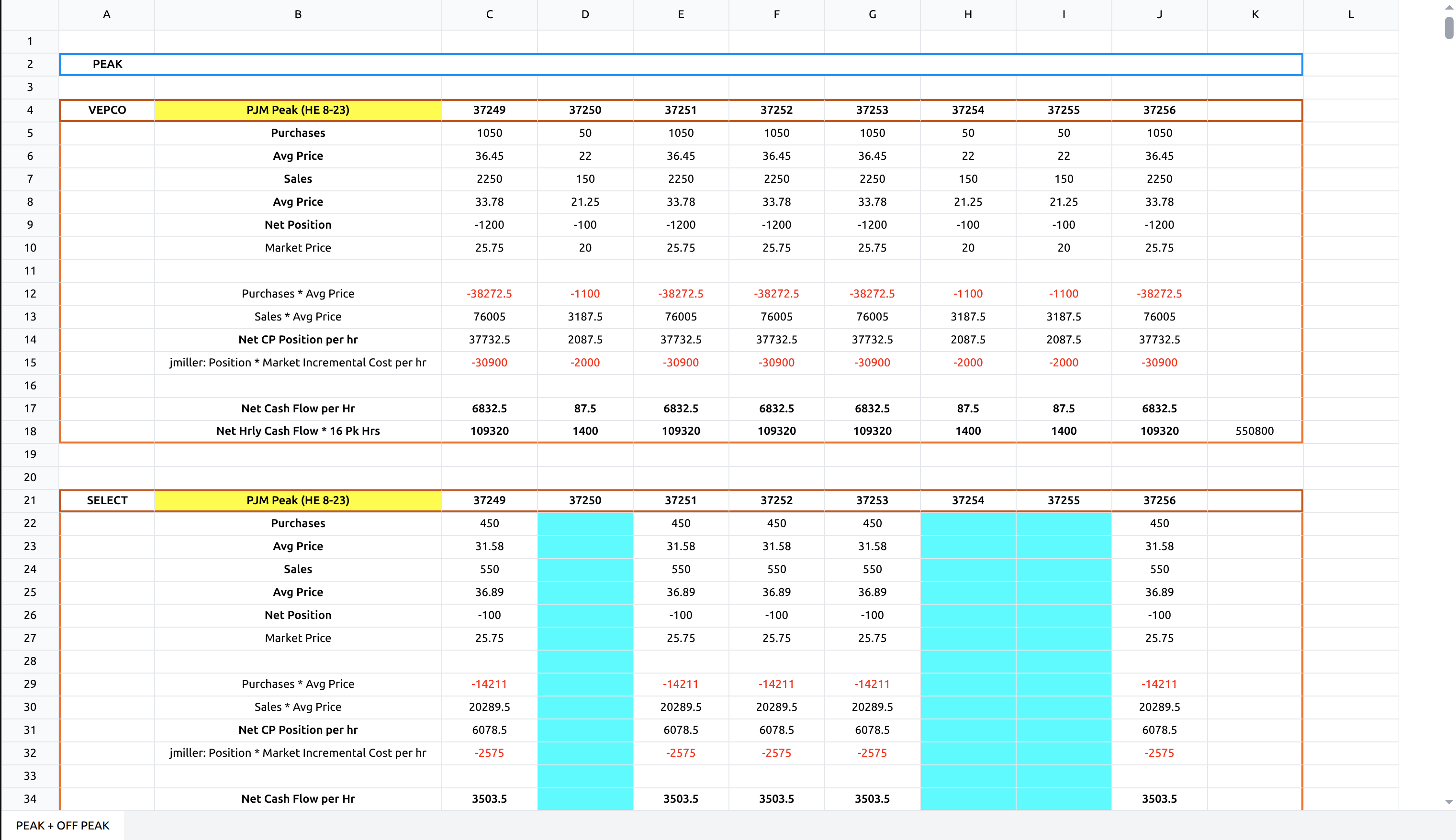 When processing spreadsheet files (`.xlsx`, `.xls`), the output includes additional `ss_*` prefixed fields that provide native Excel context. These fields exist alongside the standard `content`, `embed`, and `bbox` fields, enriching each segment with its precise location and native data from the original spreadsheet.
### Key Fields
* **`ss_range`**: The cell range for the segment in A1 notation (e.g., `A1:D10`).
* **`ss_cells`**: A detailed array of each cell in the segment, including its original formula, value, text and styling. Allows you to see both the raw formula (`=SUM(B2:B10)`) and its calculated result (`$55,000`).
* **`ss_header_*`**: Fields identifying the detected header for a table, such as `ss_header_range`, `ss_header_text`, `ss_header_bbox`, and `ss_header_ocr`. Headers are intelligently associated even if they are not directly adjacent to the table.
These spreadsheet-native values unlock powerful capabilities:
* **Create Interactive Experiences**: Use `ss_range` to build native citation experiences that let users click data and jump to the precise source cell in a viewer.
* **Get Cleaner LLM Context**: Combine layout analysis with precise cell data to identify tables, associate headers, and filter out irrelevant cells. This provides cleaner, more meaningful context for LLM processing.
* **Build Powerful Spreadsheet Agents**: Use the `ss_*` fields to build AI agents that can read, analyze, and even **write** back to spreadsheets. Understanding cell formulas and values enables agents to automate tasks like updating financial models, correcting entries, or adding new rows.
***
Looking for additional output fields? See the Advanced Outputs section below
for more metadata options.
Beyond the key fields discussed above, the Parse output is enriched with a variety of other useful metadata at the file, page, and segment levels. Here are some of the most valuable advanced fields:
* **Word-Level Bounding Boxes**: Included in the `ocr` array for each page, this provides the precise coordinates for every single word detected by the OCR process. This is ideal for building applications that require highlighting specific words or phrases in a document viewer.
* **Cropped Segment Images**: Each segment object contains an `image` field with a URL to a cropped image of just that segment. This is incredibly useful for providing visual context to an LLM or displaying the source of a specific chunk of text.
* **File & Page Metadata**: The top-level `output` object contains file-level metadata like the original `file_name`, `mime_type`, and `page_count`. Additionally, the `pages` array contains detailed information for each page, including a full-page image URL, dimensions (`page_width`, `page_height`), and DPI.
For a comprehensive breakdown of every field available in the output, please refer to our [API Reference](/api-references/tasks/get-task#response-output).
When processing spreadsheet files (`.xlsx`, `.xls`), the output includes additional `ss_*` prefixed fields that provide native Excel context. These fields exist alongside the standard `content`, `embed`, and `bbox` fields, enriching each segment with its precise location and native data from the original spreadsheet.
### Key Fields
* **`ss_range`**: The cell range for the segment in A1 notation (e.g., `A1:D10`).
* **`ss_cells`**: A detailed array of each cell in the segment, including its original formula, value, text and styling. Allows you to see both the raw formula (`=SUM(B2:B10)`) and its calculated result (`$55,000`).
* **`ss_header_*`**: Fields identifying the detected header for a table, such as `ss_header_range`, `ss_header_text`, `ss_header_bbox`, and `ss_header_ocr`. Headers are intelligently associated even if they are not directly adjacent to the table.
These spreadsheet-native values unlock powerful capabilities:
* **Create Interactive Experiences**: Use `ss_range` to build native citation experiences that let users click data and jump to the precise source cell in a viewer.
* **Get Cleaner LLM Context**: Combine layout analysis with precise cell data to identify tables, associate headers, and filter out irrelevant cells. This provides cleaner, more meaningful context for LLM processing.
* **Build Powerful Spreadsheet Agents**: Use the `ss_*` fields to build AI agents that can read, analyze, and even **write** back to spreadsheets. Understanding cell formulas and values enables agents to automate tasks like updating financial models, correcting entries, or adding new rows.
***
Looking for additional output fields? See the Advanced Outputs section below
for more metadata options.
Beyond the key fields discussed above, the Parse output is enriched with a variety of other useful metadata at the file, page, and segment levels. Here are some of the most valuable advanced fields:
* **Word-Level Bounding Boxes**: Included in the `ocr` array for each page, this provides the precise coordinates for every single word detected by the OCR process. This is ideal for building applications that require highlighting specific words or phrases in a document viewer.
* **Cropped Segment Images**: Each segment object contains an `image` field with a URL to a cropped image of just that segment. This is incredibly useful for providing visual context to an LLM or displaying the source of a specific chunk of text.
* **File & Page Metadata**: The top-level `output` object contains file-level metadata like the original `file_name`, `mime_type`, and `page_count`. Additionally, the `pages` array contains detailed information for each page, including a full-page image URL, dimensions (`page_width`, `page_height`), and DPI.
For a comprehensive breakdown of every field available in the output, please refer to our [API Reference](/api-references/tasks/get-task#response-output).