> ## Documentation Index
> Fetch the complete documentation index at: https://docs.chunkr.ai/llms.txt
> Use this file to discover all available pages before exploring further.
# Parse Overview
> Convert documents into LLM-ready data
The Parse feature transforms complex documents into machine-readable data, optimized for LLMs.
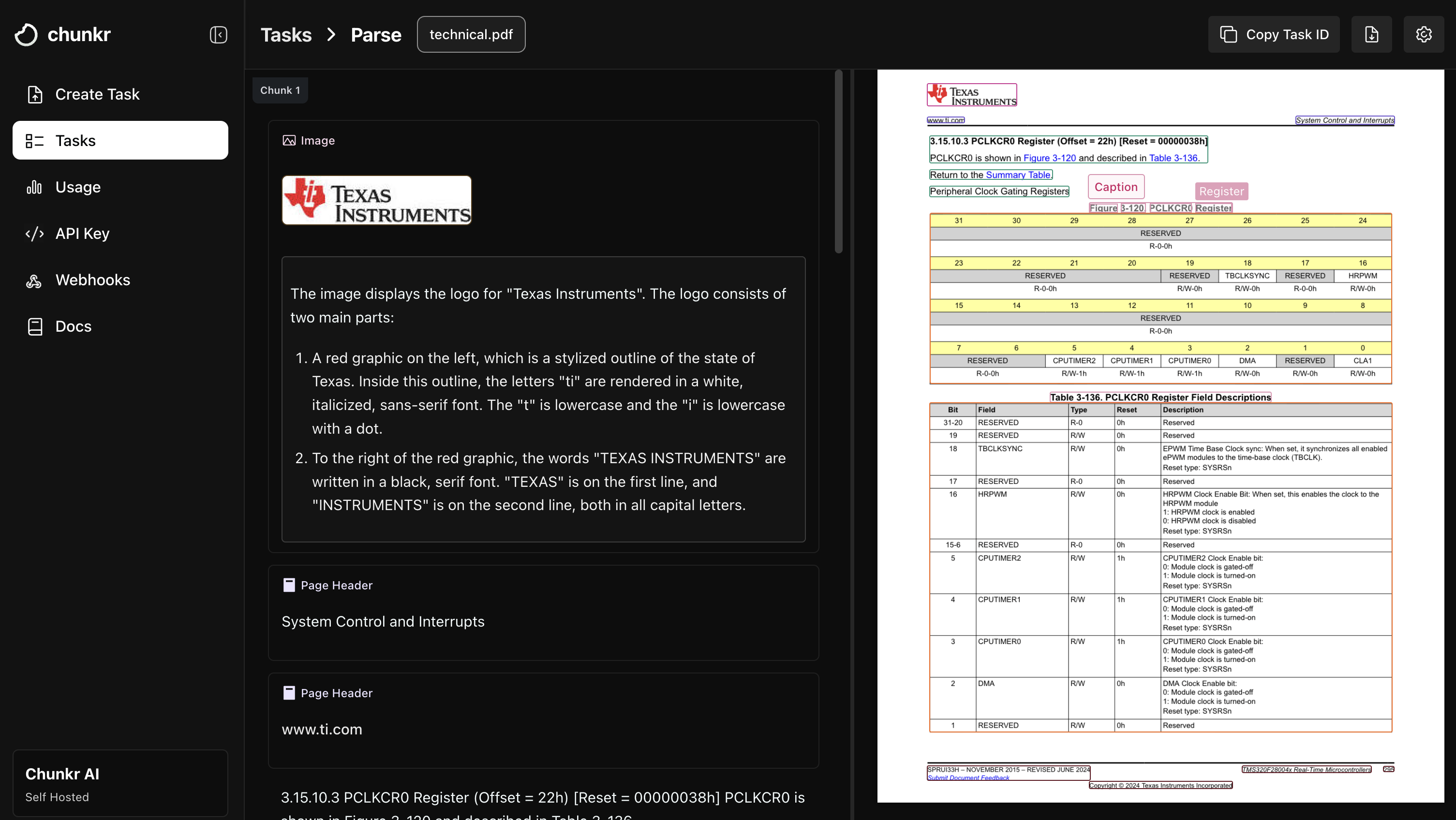 It intelligently identifies document elements, processes them based on their type, and outputs clean HTML & Markdown content ready for AI applications and downstream workflow automation.
## Key Features
* [**Perfect Markdown & HTML**](/pages/features/parse/outputs#1-content): LLM-ready content (Markdown, HTML, tables, etc).
* **Reading order intact**: Maintains the natural reading flow for complex layouts.
* [**Granular bounding boxes**](/pages/features/parse/outputs#3-bbox-bounding-box): Pinpoints element coordinates with precision for easy citations.
* [**Native Spreadsheet handling**](/pages/features/parse/outputs#spreadsheet-specific-outputs-ss): 100% reconstruction with formulas, styling, and cell values preserved; precise ranges; cleans tables and converts charts to structured data.
* [**Post-processing**](/pages/features/parse/outputs#5-post-processing): Token-aware chunking, cropped images, and more.
## Example: Parse and access chunk content
Here's how you can parse a document and access its chunks using our SDKs.
```python Python theme={"system"}
import os
import time
from chunkr_ai import Chunkr
client = Chunkr(api_key=os.environ["CHUNKR_API_KEY"])
# Parse a document from URL
url = "https://s3.us-east-1.amazonaws.com/chunkr-web/uploads/doc.pdf"
task = client.tasks.parse.create(file=url)
# OR parse from local file
with open("path/to/doc.pdf", "rb") as f:
file = client.files.create(file=f)
task = client.tasks.parse.create(file=file.url)
print(f"Task created with ID: {task.task_id}")
# Wait for the task to complete
while not task.completed:
task = client.tasks.parse.get(task_id=task.task_id)
print(f"Task {task.task_id} is {task.status}")
time.sleep(3)
# Access the chunks from the output
if task.status == "Succeeded" and task.output is not None:
for chunk in task.output.chunks:
print(chunk.content)
else: # Could be "Failed" or "Cancelled"
print(f"Task status: {task.status}")
```
```typescript TypeScript theme={"system"}
import Chunkr from "chunkr-ai";
import fs from "fs";
const client = new Chunkr({ apiKey: process.env.CHUNKR_API_KEY! });
// Parse a document from URL
const url = "https://s3.us-east-1.amazonaws.com/chunkr-web/uploads/doc.pdf";
let task = await client.tasks.parse.create({ file: url });
// OR parse from local file
const fileStream = fs.createReadStream("path/to/doc.pdf");
const uploadedFile = await client.files.create({
file: fileStream,
file_metadata: JSON.stringify({
name: "doc.pdf",
type: "application/pdf",
}),
});
task = await client.tasks.parse.create({
file: uploadedFile.url,
});
console.log(`Task created with ID: ${task.task_id}`);
// Wait for the task to complete
while (!task.completed) {
task = await client.tasks.parse.get(task.task_id);
console.log(`Task ${task.task_id} is ${task.status}`);
await new Promise((resolve) => setTimeout(resolve, 3000));
}
// Access the chunks from the output
if (task.status == "Succeeded") {
for (const chunk of task.output?.chunks || []) {
console.log(chunk.content);
}
} else { // Could be "Failed" or "Cancelled"
console.log(`Task Status: ${task.status}`);
}
```
***
Our default configuration is optimized through extensive testing and provides
excellent results for most documents. You can customize parse if you have
specific requirements.
For a comprehensive breakdown of every available configuration, please refer to our [API Reference](/api-references/tasks/create-task). Here is an overview of our configuration options:
* **Pipeline (`pipeline`)**: Choose the provider (`Azure` or `Chunkr`) for layout analysis and OCR models.
* **Layout Analysis & OCR**:
* *Segmentation Strategy (`segmentation_strategy`)*: Choose between `LayoutAnalysis` (default) or a full-page VLM approach for parsing.
* *OCR Strategy (`ocr_strategy`)*: Use `Auto` to selectively apply OCR or `All` to force it on every page.
* **Segment-level Customization (`segment_processing`)**: Control processing for each document element (e.g., `Text`, `Table`, `Picture`):
* *Processing Strategy (`strategy`)*: For each segment, set the strategy to generate HTML/Markdown. `Auto` (simple OCR + logic), `LLM` (VLM generation), or `Ignore` (remove from output).
* *Format Control (`format`)*: Control the output format (`Markdown` or `HTML`) for segment content.
* *Extended Context (`extended_context`)*: Provide the full page image as additional context for VLM processing of a segment. Useful for cases like distant legends for tables and pictures.
* *Cropped Images (`crop_image`)*: Control if a cropped image of the segment is included.
* **Chunking (`chunk_processing`)**: Configure chunking strategy, sizes, and token-counting model.
* **Error Handling (`error_handling`)**: Set to `Fail` (default) to stop on any error, or `Continue` to process despite non-critical errors.
It intelligently identifies document elements, processes them based on their type, and outputs clean HTML & Markdown content ready for AI applications and downstream workflow automation.
## Key Features
* [**Perfect Markdown & HTML**](/pages/features/parse/outputs#1-content): LLM-ready content (Markdown, HTML, tables, etc).
* **Reading order intact**: Maintains the natural reading flow for complex layouts.
* [**Granular bounding boxes**](/pages/features/parse/outputs#3-bbox-bounding-box): Pinpoints element coordinates with precision for easy citations.
* [**Native Spreadsheet handling**](/pages/features/parse/outputs#spreadsheet-specific-outputs-ss): 100% reconstruction with formulas, styling, and cell values preserved; precise ranges; cleans tables and converts charts to structured data.
* [**Post-processing**](/pages/features/parse/outputs#5-post-processing): Token-aware chunking, cropped images, and more.
## Example: Parse and access chunk content
Here's how you can parse a document and access its chunks using our SDKs.
```python Python theme={"system"}
import os
import time
from chunkr_ai import Chunkr
client = Chunkr(api_key=os.environ["CHUNKR_API_KEY"])
# Parse a document from URL
url = "https://s3.us-east-1.amazonaws.com/chunkr-web/uploads/doc.pdf"
task = client.tasks.parse.create(file=url)
# OR parse from local file
with open("path/to/doc.pdf", "rb") as f:
file = client.files.create(file=f)
task = client.tasks.parse.create(file=file.url)
print(f"Task created with ID: {task.task_id}")
# Wait for the task to complete
while not task.completed:
task = client.tasks.parse.get(task_id=task.task_id)
print(f"Task {task.task_id} is {task.status}")
time.sleep(3)
# Access the chunks from the output
if task.status == "Succeeded" and task.output is not None:
for chunk in task.output.chunks:
print(chunk.content)
else: # Could be "Failed" or "Cancelled"
print(f"Task status: {task.status}")
```
```typescript TypeScript theme={"system"}
import Chunkr from "chunkr-ai";
import fs from "fs";
const client = new Chunkr({ apiKey: process.env.CHUNKR_API_KEY! });
// Parse a document from URL
const url = "https://s3.us-east-1.amazonaws.com/chunkr-web/uploads/doc.pdf";
let task = await client.tasks.parse.create({ file: url });
// OR parse from local file
const fileStream = fs.createReadStream("path/to/doc.pdf");
const uploadedFile = await client.files.create({
file: fileStream,
file_metadata: JSON.stringify({
name: "doc.pdf",
type: "application/pdf",
}),
});
task = await client.tasks.parse.create({
file: uploadedFile.url,
});
console.log(`Task created with ID: ${task.task_id}`);
// Wait for the task to complete
while (!task.completed) {
task = await client.tasks.parse.get(task.task_id);
console.log(`Task ${task.task_id} is ${task.status}`);
await new Promise((resolve) => setTimeout(resolve, 3000));
}
// Access the chunks from the output
if (task.status == "Succeeded") {
for (const chunk of task.output?.chunks || []) {
console.log(chunk.content);
}
} else { // Could be "Failed" or "Cancelled"
console.log(`Task Status: ${task.status}`);
}
```
***
Our default configuration is optimized through extensive testing and provides
excellent results for most documents. You can customize parse if you have
specific requirements.
For a comprehensive breakdown of every available configuration, please refer to our [API Reference](/api-references/tasks/create-task). Here is an overview of our configuration options:
* **Pipeline (`pipeline`)**: Choose the provider (`Azure` or `Chunkr`) for layout analysis and OCR models.
* **Layout Analysis & OCR**:
* *Segmentation Strategy (`segmentation_strategy`)*: Choose between `LayoutAnalysis` (default) or a full-page VLM approach for parsing.
* *OCR Strategy (`ocr_strategy`)*: Use `Auto` to selectively apply OCR or `All` to force it on every page.
* **Segment-level Customization (`segment_processing`)**: Control processing for each document element (e.g., `Text`, `Table`, `Picture`):
* *Processing Strategy (`strategy`)*: For each segment, set the strategy to generate HTML/Markdown. `Auto` (simple OCR + logic), `LLM` (VLM generation), or `Ignore` (remove from output).
* *Format Control (`format`)*: Control the output format (`Markdown` or `HTML`) for segment content.
* *Extended Context (`extended_context`)*: Provide the full page image as additional context for VLM processing of a segment. Useful for cases like distant legends for tables and pictures.
* *Cropped Images (`crop_image`)*: Control if a cropped image of the segment is included.
* **Chunking (`chunk_processing`)**: Configure chunking strategy, sizes, and token-counting model.
* **Error Handling (`error_handling`)**: Set to `Fail` (default) to stop on any error, or `Continue` to process despite non-critical errors.