> ## Documentation Index
> Fetch the complete documentation index at: https://docs.chunkr.ai/llms.txt
> Use this file to discover all available pages before exploring further.
# Web Interface
> Create tasks and visually inspect output quality without writing any code
The Chunkr web interface provides an intuitive way to test document processing, and evaluate output quality - all without writing a single line of code.
Use the dashboard to visually inspect parsing accuracy, verify extraction results, and see exactly how your documents are being processed.
## Creating and Viewing Tasks
Follow these steps to create an extract task and explore the interactive viewers.
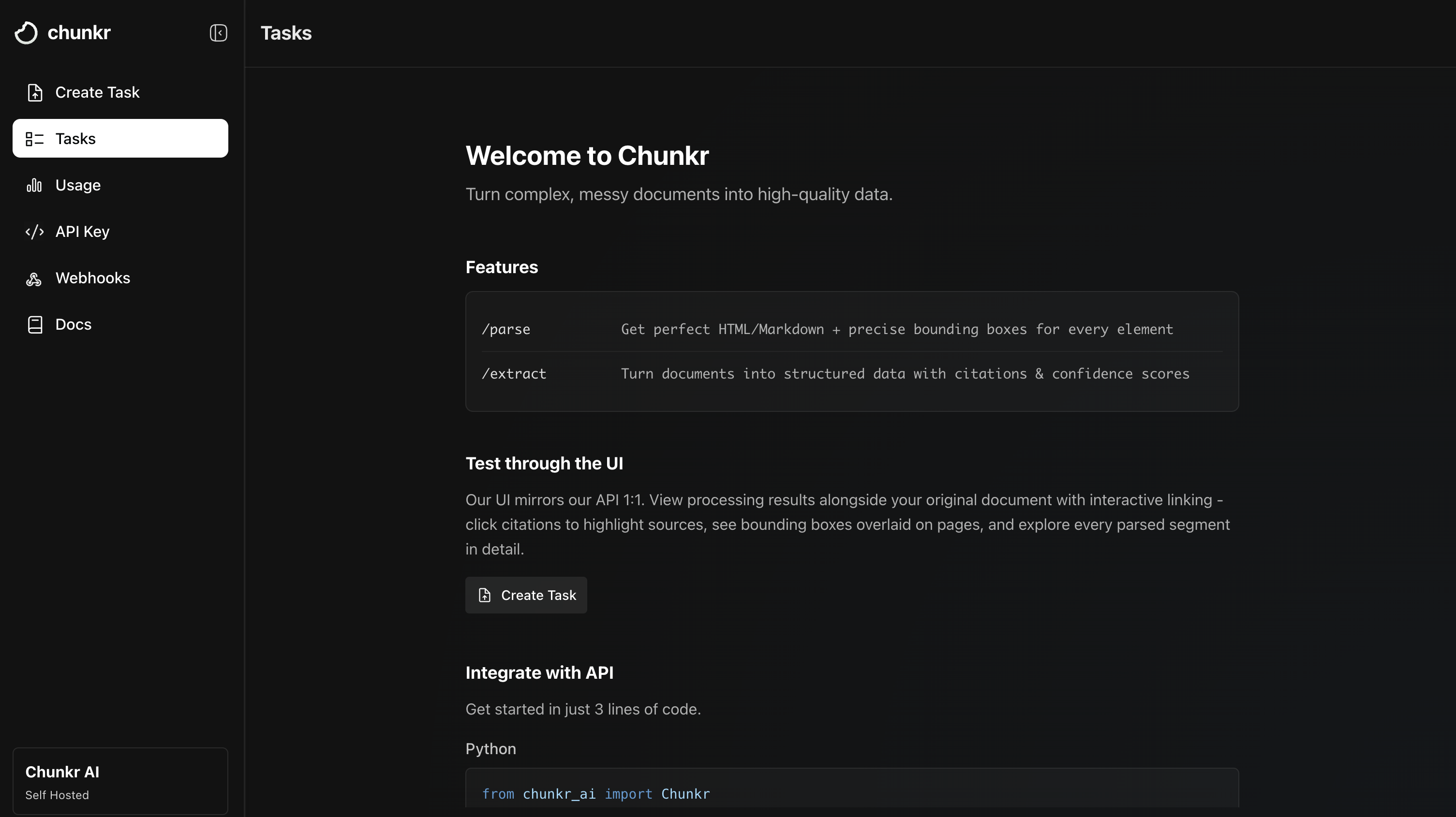
When you first visit the [Chunkr dashboard](https://app.chunkr.ai), you'll see the **Tasks** tab with welcome text and a call-to-action. This is where all your tasks - whether created via the UI or API - will appear.
Click the **Create Task** button to get started.
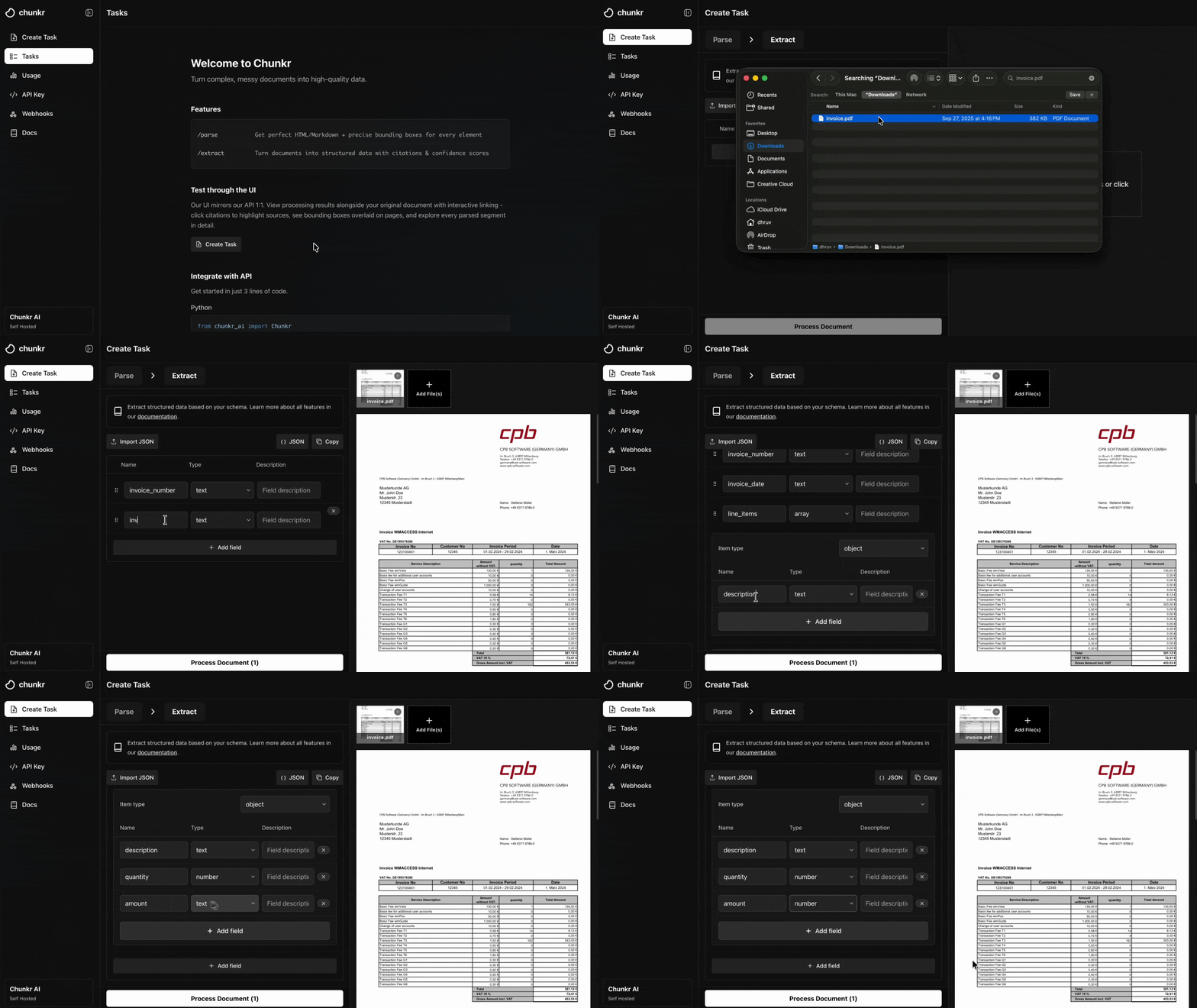
 Walk through the task creation workflow to extract structured data from your document:
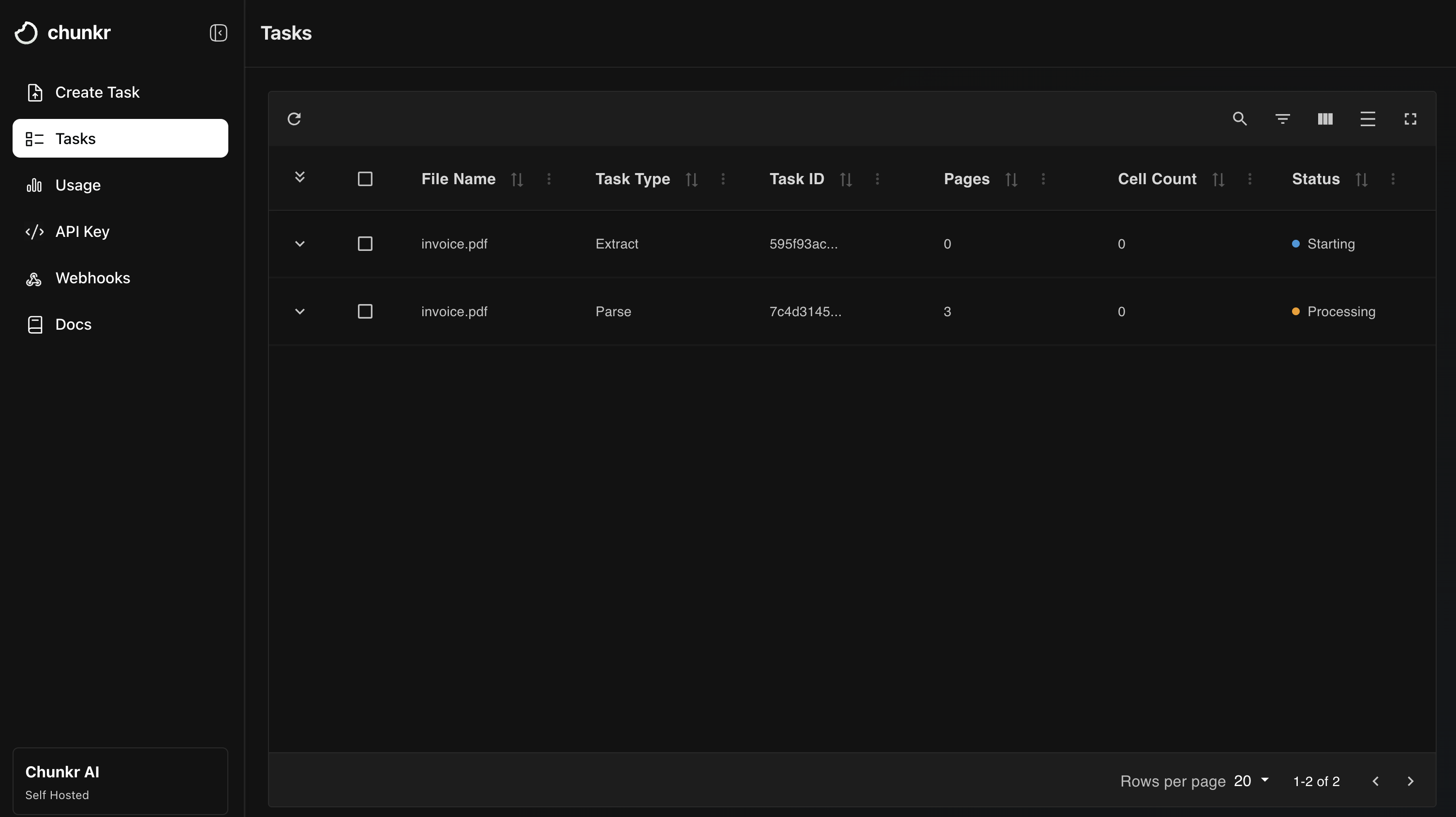
 Click **Process Documents** to begin processing. You'll be automatically redirected to the **Tasks** tab where a task table appears showing:
* **Two tasks in Processing state**: a Parse task (for document segmentation) and an Extract task (for structured data extraction)
* Chunkr automatically creates both tasks when you submit an Extract request
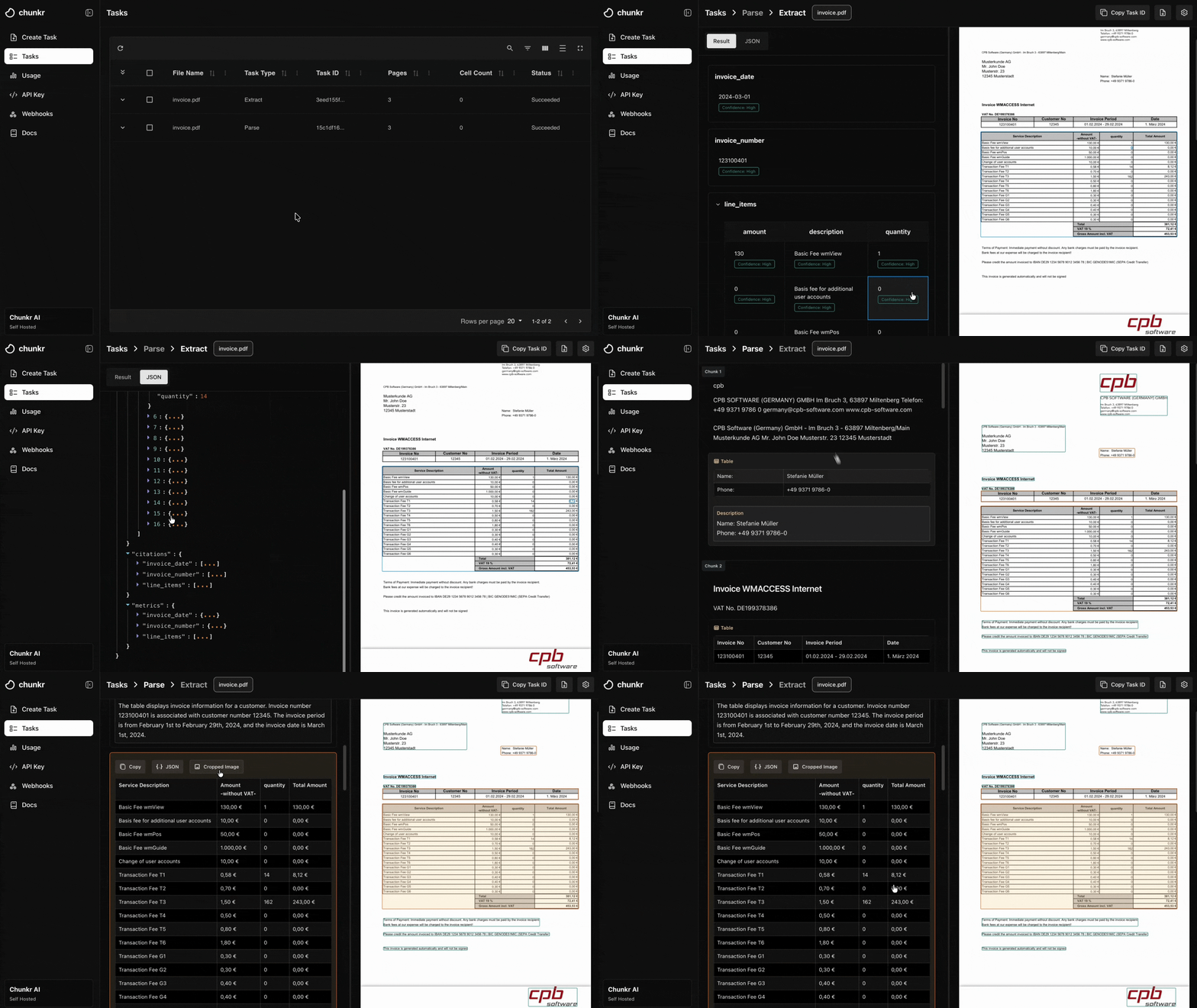
Once your tasks complete, click any row in the table to open the corresponding viewer.
Click **Process Documents** to begin processing. You'll be automatically redirected to the **Tasks** tab where a task table appears showing:
* **Two tasks in Processing state**: a Parse task (for document segmentation) and an Extract task (for structured data extraction)
* Chunkr automatically creates both tasks when you submit an Extract request
Once your tasks complete, click any row in the table to open the corresponding viewer.
 Once processing completes, click on any task row to explore your results in purpose-built viewers designed for quality inspection:
 ## Additional Features
The web interface also provides tools to manage your account:
* **Manage API keys**
* **Usage**: Monitor your document processing usage and limits
* **Billing**: Manage your subscription and payment methods
## Why use this?
The Chunkr dashboard is perfect for:
* **Testing before integration**: Try different documents/tasks and see results immediately
* **Quality assurance**: Visually verify parsing and extraction accuracy
* **Troubleshooting**: Identify processing issues
## Next Steps
Get started in under 2 minutes
Powerful Python and Typescript libraries
Turn any document into LLM-ready data. Markdown, bounding boxes, etc.
Auto-fill custom schemas. Citations, confidence scores, structured JSON.
## Additional Features
The web interface also provides tools to manage your account:
* **Manage API keys**
* **Usage**: Monitor your document processing usage and limits
* **Billing**: Manage your subscription and payment methods
## Why use this?
The Chunkr dashboard is perfect for:
* **Testing before integration**: Try different documents/tasks and see results immediately
* **Quality assurance**: Visually verify parsing and extraction accuracy
* **Troubleshooting**: Identify processing issues
## Next Steps
Get started in under 2 minutes
Powerful Python and Typescript libraries
Turn any document into LLM-ready data. Markdown, bounding boxes, etc.
Auto-fill custom schemas. Citations, confidence scores, structured JSON.